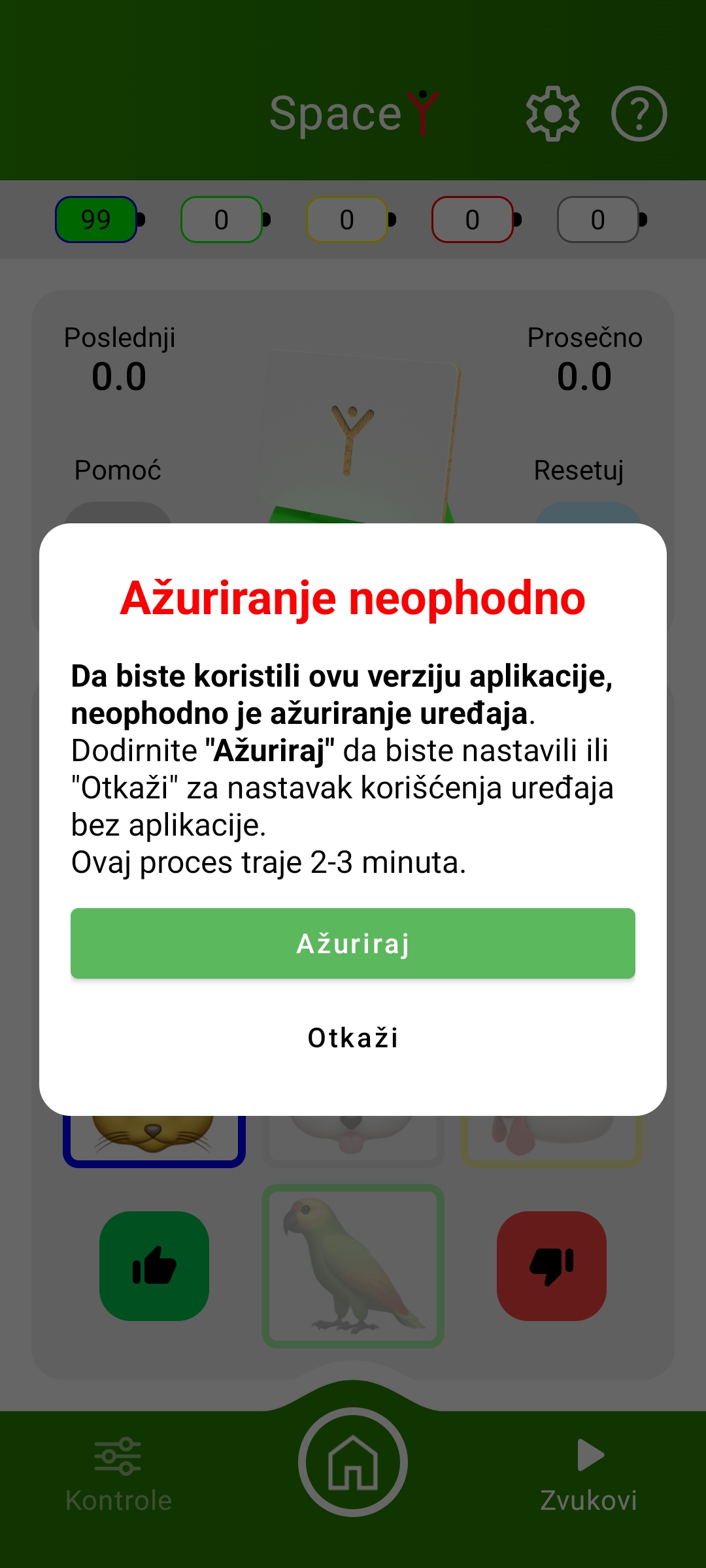
If an update is available, this screen will appear to you
What is a device update?
VoiceToys are digitally controlled devices - they contain a microcontroller that has its own program - the firmware.
Updating the firmware enables us to improve them with new functions and correct any deficiencies in the old ones. With that, this user manual will also be updated and changed. When a new version of the firmware is available, the application will notify you and offer the update.
If the update is not mandatory, you can postpone it for later by pressing the "cancel" button. If it is a necessary update, you must carry it out before continuing your work.
In two simple steps your mobile device downloads the update from the VoiceToys cloud, then connects to the Wi-Fi network of the VoiceToys device and updates it automatically.
1 - Start and download of the update
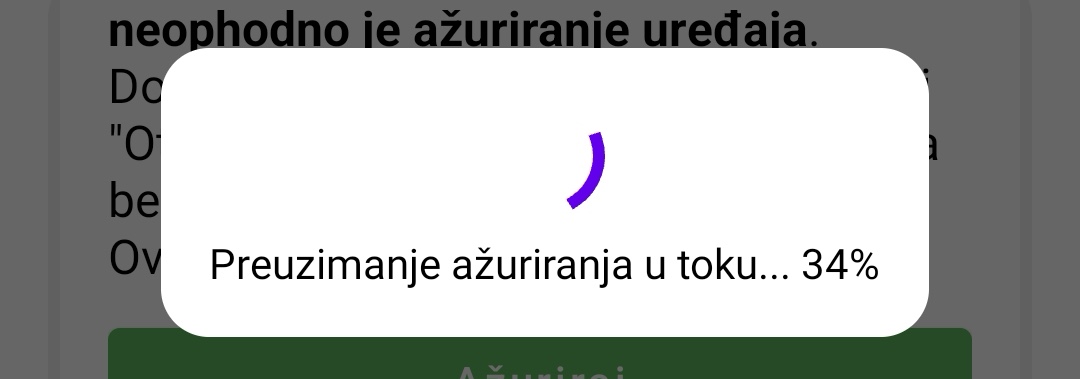
After pressing the Update button, the new firmware is downloaded from the internet into the memory of your mobile device. For this step it is necessary that the device is connected to the internet.
After the update has been downloaded, your VoiceToys device enters Update mode, that is, it becomes a Wi-Fi access point. The device stops its usual operation and blue lights are seen on it.
2 - Connecting to the WiFi of the VoiceToys device
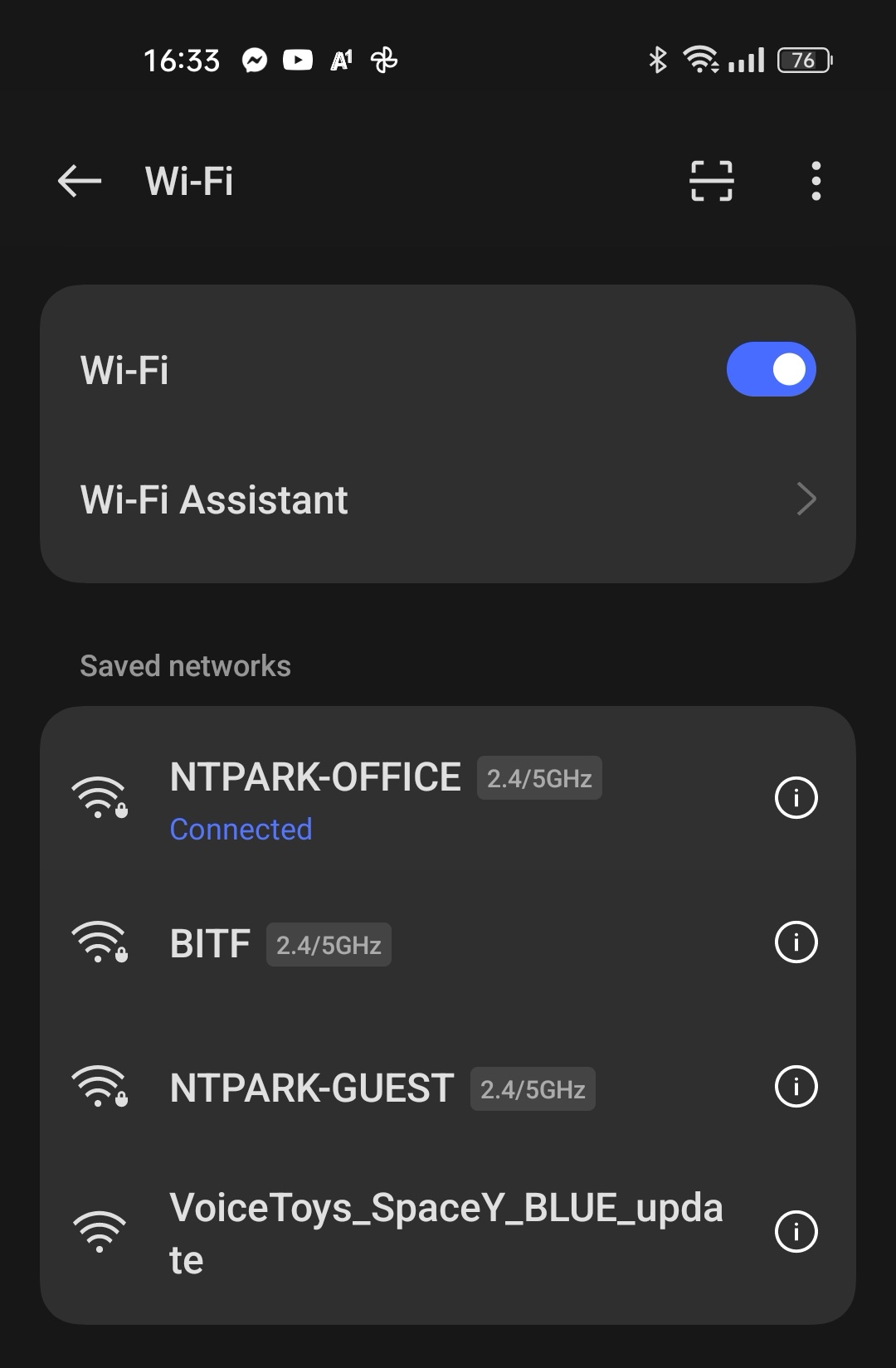
Android mobile devices will automatically take you to the WiFi settings of your phone, while on iPhone devices you must do this manually, by launching the Settings of your device and selecting the WiFi option. If the WiFi on your phone is not turned on, turn it on. In the list of WiFi networks find the VoiceToys update network of your device and connect to it:
3 - Sending the Firmware to the VoiceToys device
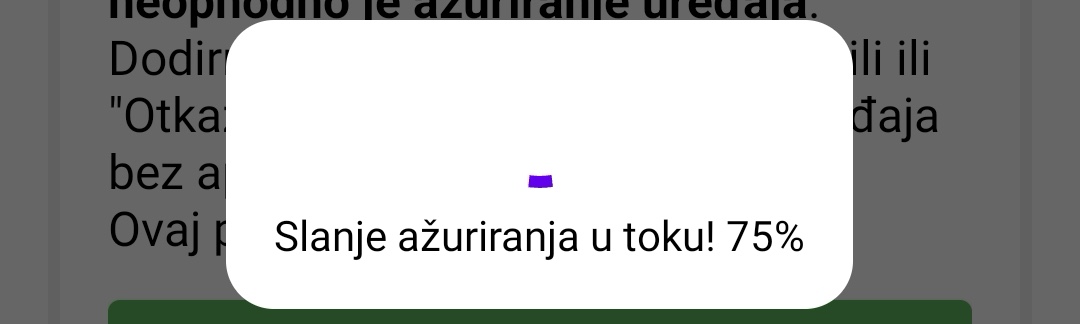
After you have connected to the VoiceToys update network, return to the VoiceToys application, where the following notification will await you:
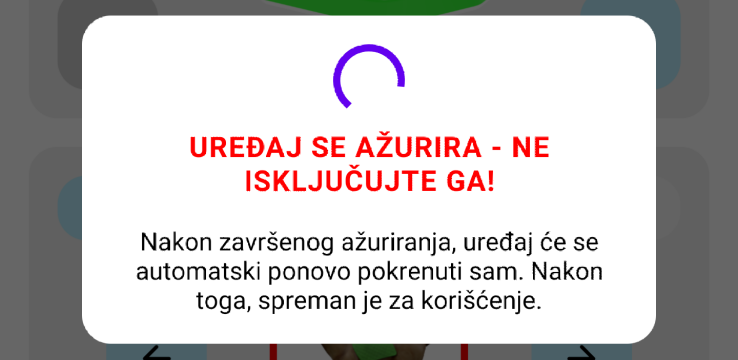
From this moment you only need to wait for the update to be sent from the phone to the device. Do not turn it off until it automatically restarts. After that, the process is complete!