Device specifications
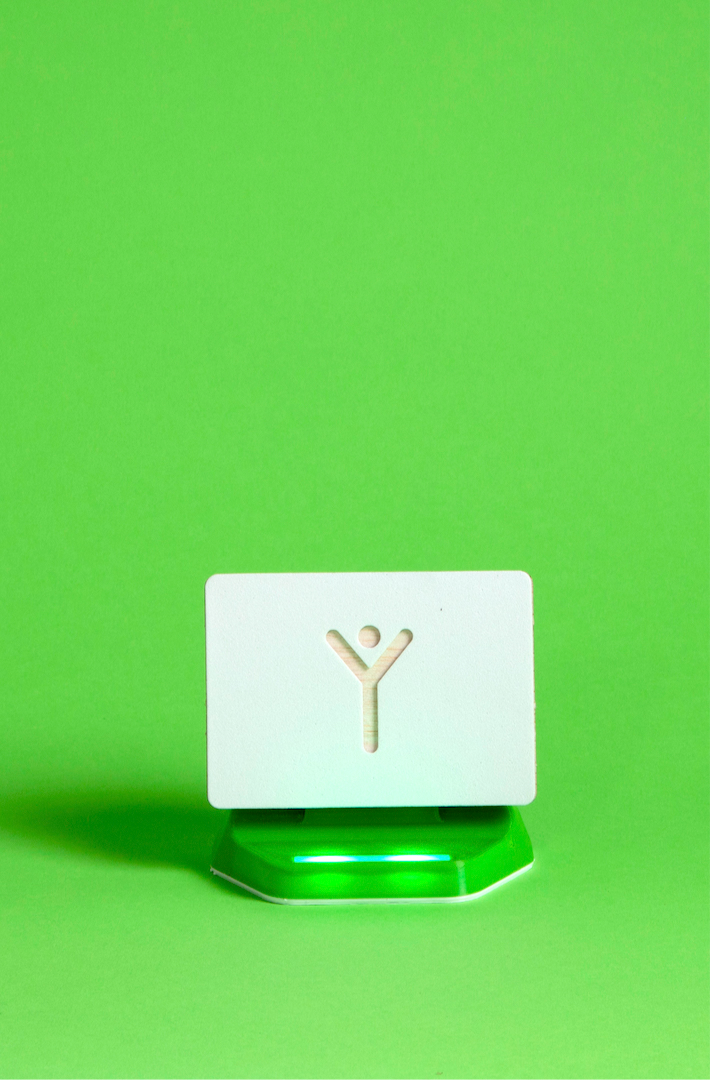
| Power supply | DC, 5V, 2A |
|---|---|
| Connector | USB-C |
| Dimensions | 120x 73 x 107mm |
| Battery | Li-Ion 18650 |
| Networks | Wi-Fi, Bluetooth |
| Housing | PET-G, Balsa wood, EVA foam, extruded acrylic |
System description and safety notes
SpaceY is a system consisting of 5 smart speakers, intended for practicing the identification and spatial localization of sound. Its games and settings allow it to be used in work with children of all ages and developmental levels, including children with hearing loss. They connect wirelessly, and are powered by built-in rechargeable batteries. They are controlled exclusively with the VoiceToys mobile application. They emit easily recognizable sounds sorted into groups of five sounds each.
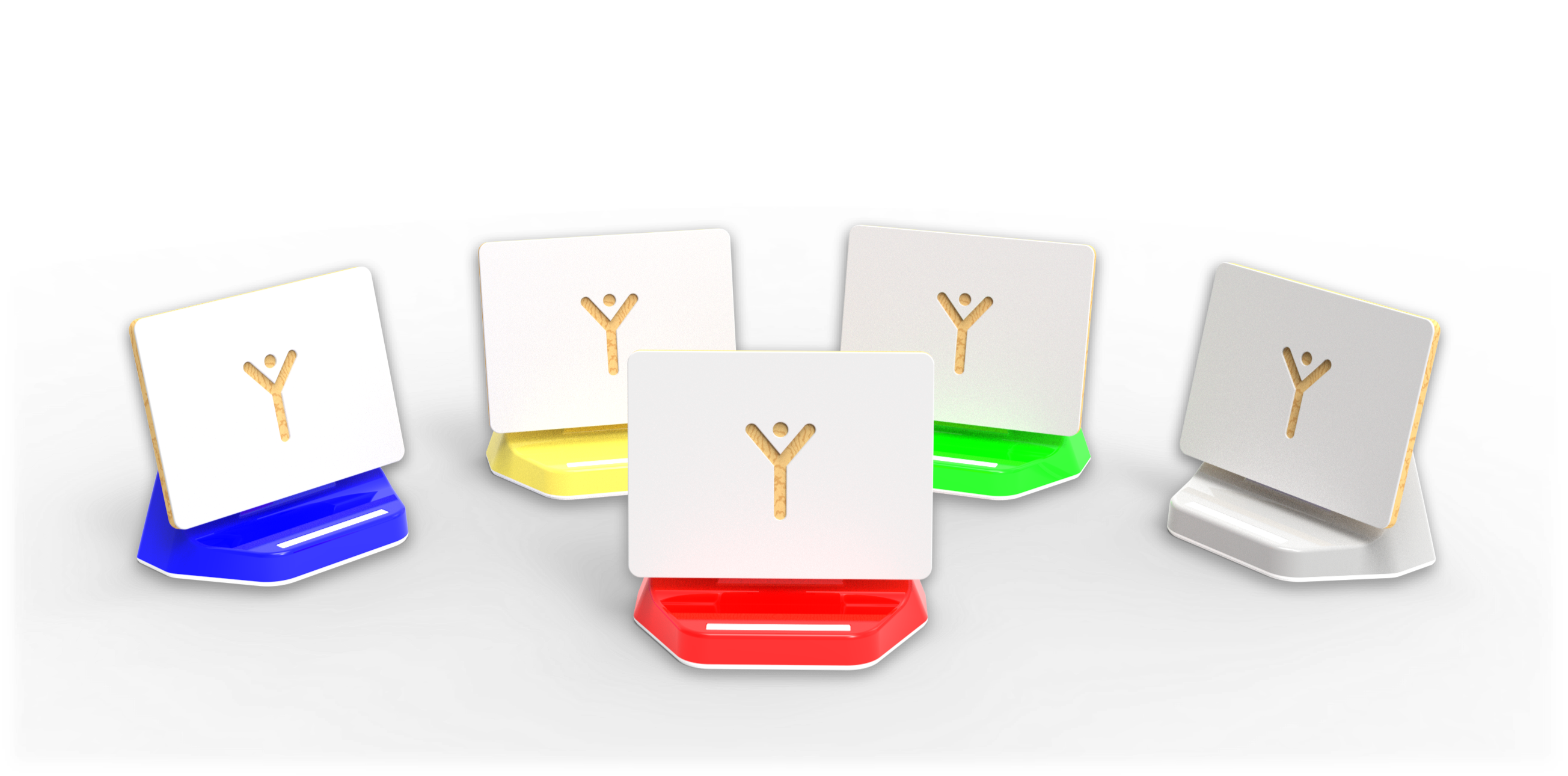
SpaceY - a system of 5 speakers
Putting into operation
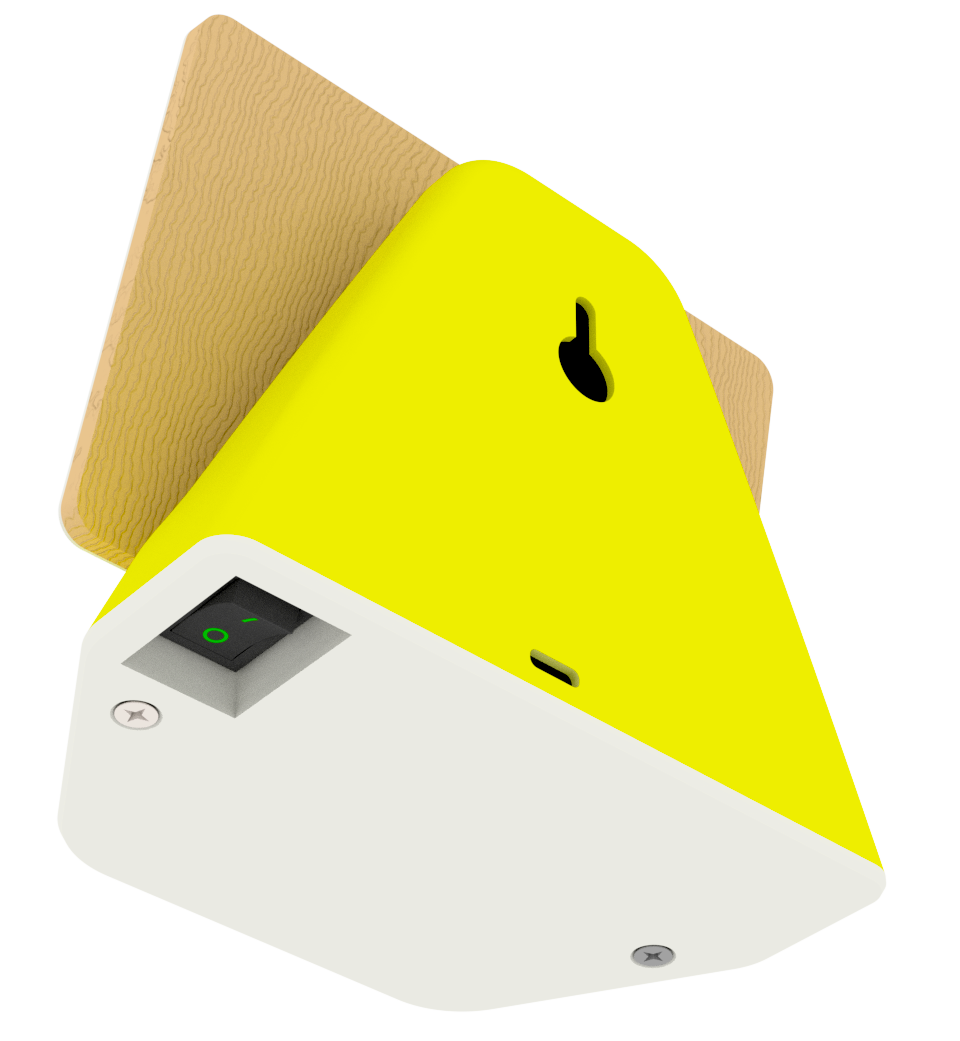
The speakers are turned on by setting the switch located on the underside of the device to position 1. The lights on the speakers begin to emit light in the color of the device. It is necessary that the blue speaker is turned on so that the others can function as well! After turning on all the speakers, launch the mobile application. On the application's home screen click on the image of the speaker when the background behind it turns green. If the speakers have connected correctly, the lights on them will turn off. That means they are ready for operation.
If during operation the lights begin to glow orange, it means that the battery has weakened, and if they begin to flash red, the battery is at a critically low level and should be charged immediately. You can also monitor the battery status using the mobile application.
Do NOT grip the speakers by the resonant board - the white board made of balsa and EVA foam with the marking! There is a danger that it will fall off. Please grip the speaker only by the plastic housing!Mounting and placement in space
Place the speakers in the space so that they are in front, on the left, on the right, behind, and one above the listener or the group being worked with. In case of wall mounting it is necessary to drill holes in the wall and place in them screws with a diameter of 6 millimeters, with a beveled head. Hang the speakers on the screws using the hole located on the back side of the speaker.
Charging the device battery
The device contains a lithium-ion battery that is charged with a 5V charger rated at least 2A, using the USB-C connector on the back side of the device. After connecting the voltage, the light indicates charging by emitting red, yellow or green color, in accordance with the battery status. When it glows constantly green, the charging process is complete. When you stop working with the SpaceY speakers, the lights on them will turn on as a reminder to turn them off. Do not leave them turned on unnecessarily, in order to avoid unnecessary battery drain.
Mobile application functions
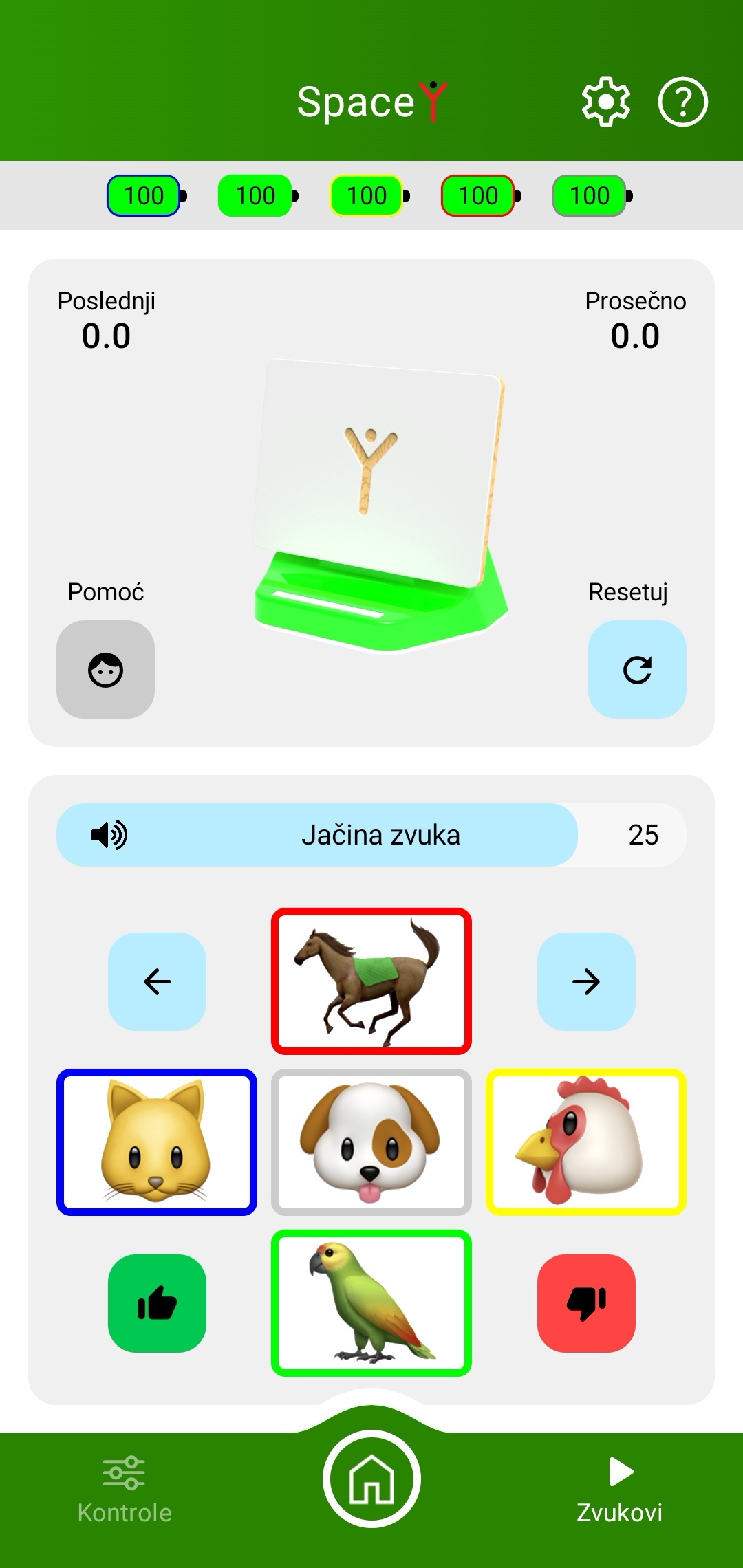
Appearance of the application screen: sound groups, playback controls, volume, time indicators and battery status.
After turning on the device, on the application's home screen (described in the chapter Mobile application) select the option "SpaceY" when its symbol turns green. If the connection is successful, the lights on the speakers will turn off and they are ready for operation.
In the upper green field of the application screen you can see the device name and the buttons for system information and help. The functions of these buttons are explained in the chapter SpreadY. Immediately below them there is a section in which you can see the charge status of the batteries for each of the speakers.
In the upper part of the screen there are the following buttons:
-
in the upper left corner, there is the indication of the time that has passed from the moment of activating a particular sound to giving an answer. After each confirmed correct answer you will see the time in which the correct answer was given. The time is reactivated with the activation of the next sound;
-
in the upper right corner there is the indication of the average time for giving answers to all the tasks set since the beginning of using the application
-
in the lower left corner there is the help button. By pressing this button the light on the speaker from which the sound comes will briefly turn on. The help light will be active until you turn it off by pressing the button again.
-
in the lower right corner there is the button for resetting both time indicators.
In the lower part of the screen there are:
- the slider for the regulation and indication of the volume that the speakers produce. The initial value is 25, it is possible to increase up to 30. Increasing or decreasing the volume affects all the speakers equally.
-five fields with animal images, framed with colors that correspond to the speakers, which serve for emitting the sounds. When the speakers are turned on, only the fields of the active speakers are displayed. By pressing the image in the field of a particular color, the corresponding sound is heard from the speaker in the color of the field that was pressed. If necessary, you can emit the same sound again without affecting the time measurement.
Detailed information about the device
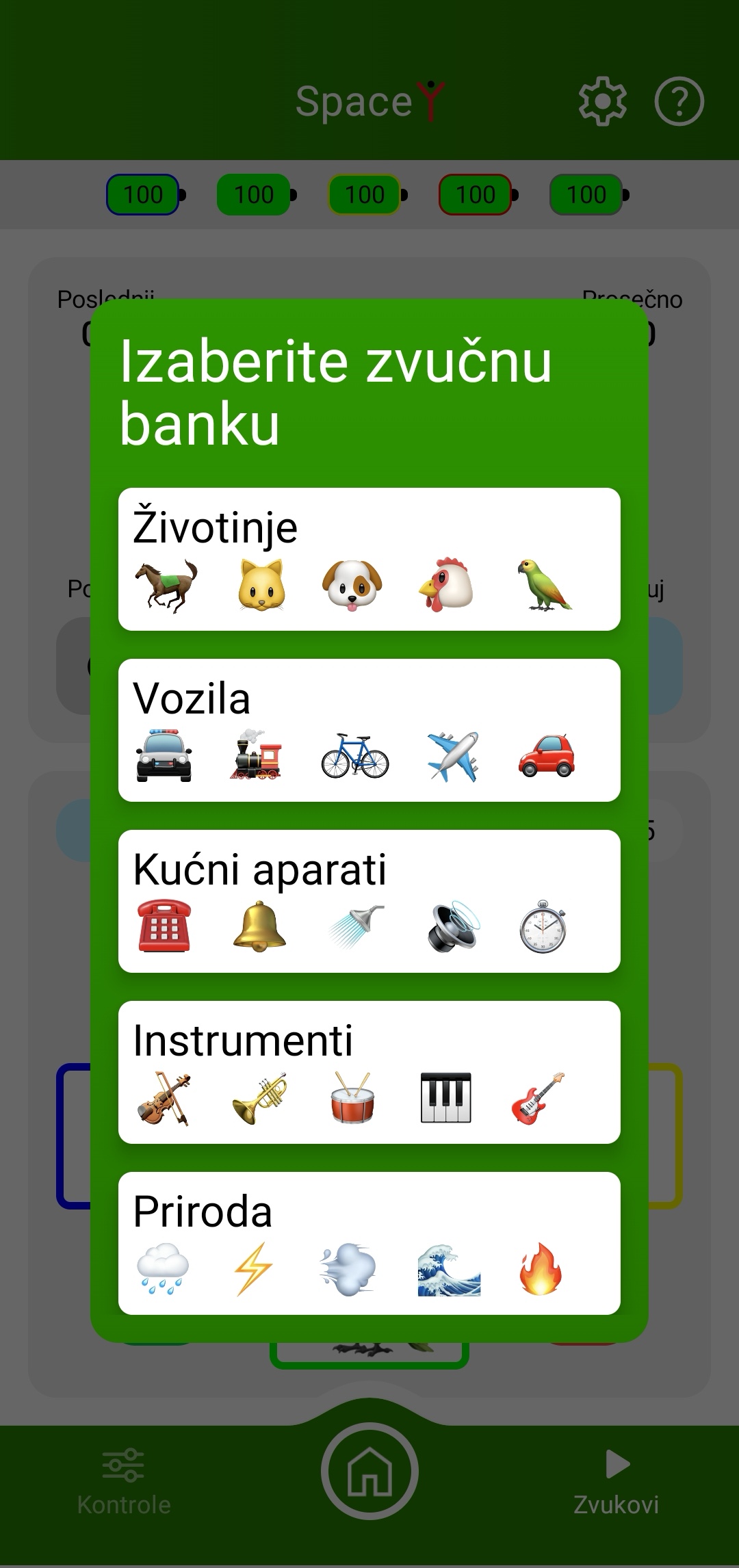
Screen view after pressing the "Sounds" button.
-
if you want to change the arrangement of the sounds, press one of the arrows ⬅️ or ➡️ located above the blue, that is, the yellow field. The images will swap places, and the speakers will react according to the new arrangement.
-
at the positions below the blue and yellow fields there are fields in the colors green 👍 and red 👎 that serve for evaluating the answers. A correct answer is evaluated by pressing the green, and an incorrect one by pressing the red field. On that occasion characteristic sounds of approval will be heard together with the colorful lights emitted by the speaker from which the given sound was coming, for correct answers, or a sound of disapproval together with the red light emitted by all the speakers for incorrect answers. On the buttons numbers will appear that indicate the number of given correct, that is, incorrect answers.
In the lower green field of the screen there is the "Sounds" button. By pressing this button the sound banks that you can select will appear. There are 21 of them, with five sounds in each: animals, vehicles, household appliances, instruments, nature, domestic animals, wild animals, body, mouth, emotions, ten syllable banks (the consonants B, P, M, T, D and S, Z, Š, Č, Ž, each series with the vowels A, E, I, O, U) and voices. By selecting one of the sound groups the images in the lower part of the screen will change and images from the sound group you selected will appear. By pressing the images new sounds will be emitted that correspond to the images.
By pressing the button with the house symbol you return to the home screen of the VoiceToys application where you can select another device from the VoiceToys system with which you want to continue working.