Device specifications
| Power supply | DC, 5V, 2A |
|---|---|
| Connector | USB-C |
| Dimensions | Diameter 121mm Height 60 mm |
| Battery | Li-Ion 18650 |
| Networks | Wi-Fi, Bluetooth |
| Housing | PET-G extruded acrylic |
Device description and safety notes
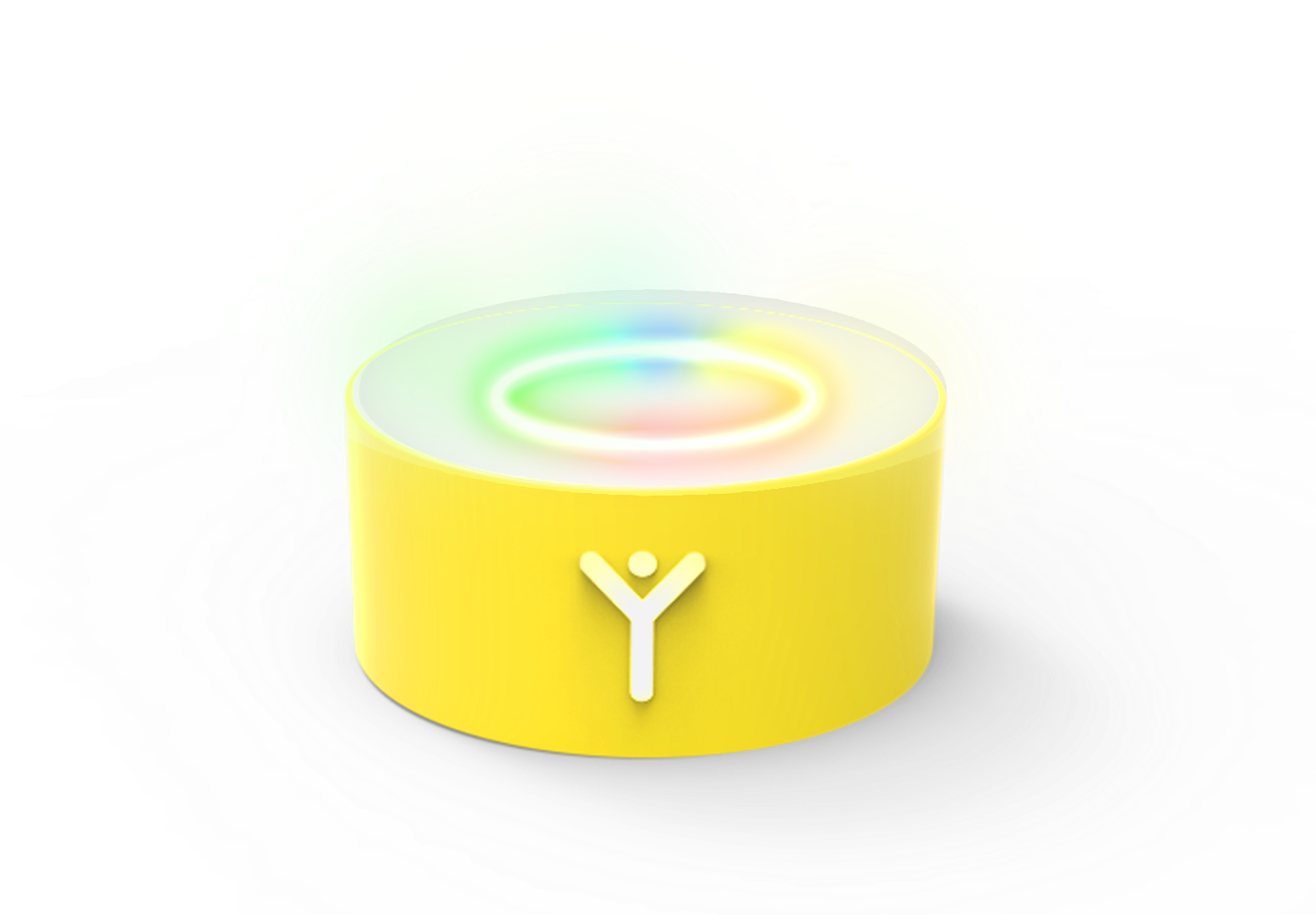
VibeY is a vibrotactile, glowing box, intended for the stimulation of vocalization and the control of voice pitch and intensity. Although it is intended for feeling vibrations through it, it must not be given to children for independent handling! Detailed settings of the device are made via the VoiceToys mobile application.
Putting the device into operation
The device is started by setting the switch located on the underside of the device to position 1. After turning on, the logo on the housing begins to glow, the LED light on the top side shows an animation of lights and the device vibrates briefly. This effect can be turned off via the mobile application, which is explained in the following chapter. Your VibeY device is now ready for operation.
If the logo changes color to yellow, it means that the battery has weakened, and if it starts to flash red, the battery is at a critically low level and should be charged immediately. You can also monitor the battery status using the mobile application.
On the underside of the device there are also three openings for the entry of sound into the interior of the device. Do not cover them and do not place the device on a soft surface that can absorb sound!
Charging the device battery
The device contains a lithium-ion battery that is charged with a 5V charger rated at least 2A, using the USB-C connector on the underside of the device. After connecting the voltage, the logo indicates charging by emitting red, yellow or green color, in accordance with the battery status. When it glows constantly green, the charging process is complete.
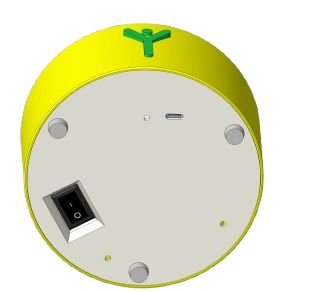
VibeY, underside of the device. The switch, USB-C input and the sound-entry openings are visible.
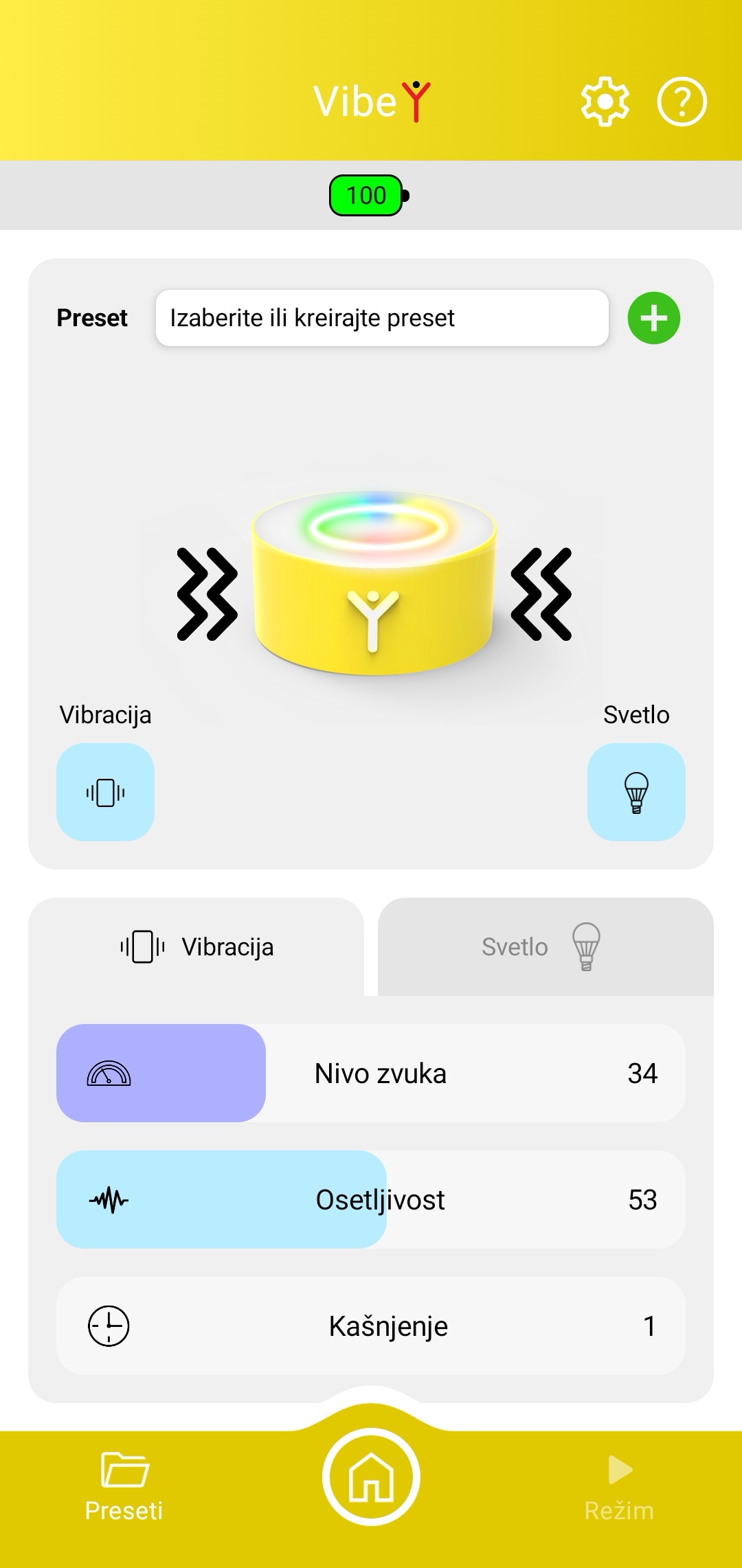
Application home screen for controlling the VibeY device
Application home screen for controlling the VibeY device
Device name, system information and help
Sliders for adjusting vibration or light (described on the following page)
Battery charge status indicator (appears when the device and application are connected)
Currently loaded preset and the + button for creating a new preset from the current settings
Tabs for selecting the display of sliders for adjusting vibration or light
Preset selection and return to the main page
Buttons for turning vibration/light on and off
Visual representation of the active vibration/light
Mobile application functions for the VibeY device
After launching, the device operates according to the parameters that were set during the previous use. If you have a need to adjust sensitivity parameters or turn off the vibration or light, you can do so using the mobile application.
Turn on the device, then on the application's home screen (described in the chapter Mobile application) select the option VibeY after its symbol turns green. If the connection is successful, the device will briefly emit blue light, the screen shown in the image on the previous page will appear on the phone, and the controls will take on the state that is currently active in the device.
After selecting the option VibeY on the application's home screen, you have entered the screen displaying the mobile application's functions for the VibeY device.
In the upper yellow field of the screen you can see the device name, system information and help.
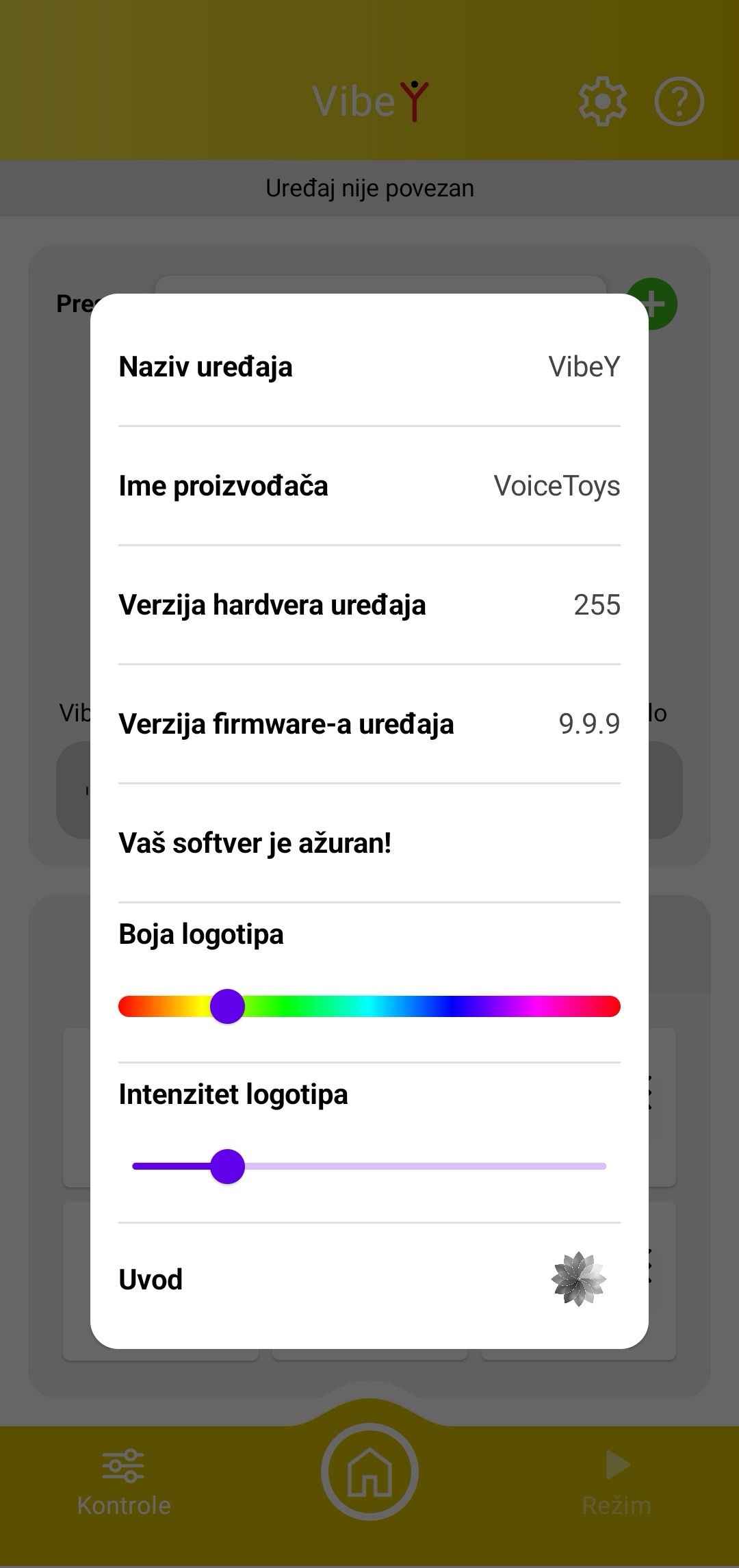
Screen view after pressing the gear symbol
By pressing the gear symbol in the upper yellow field you will access the screen with device information (in the image), where you can see whether your device is updated, that is, whether the latest software version has been loaded into it.
Using the slider in the "Logo color" section you can choose the color in which your device's logo will glow.
Using the slider in the "Logo intensity" section you can determine the intensity with which your device's logo will glow.
By pressing the symbol in the "Intro" section you can turn on or off the lights and vibration that appear every time you turn on your device.
By pressing any part of the screen shaded gray you return to the home screen for the VibeY device.
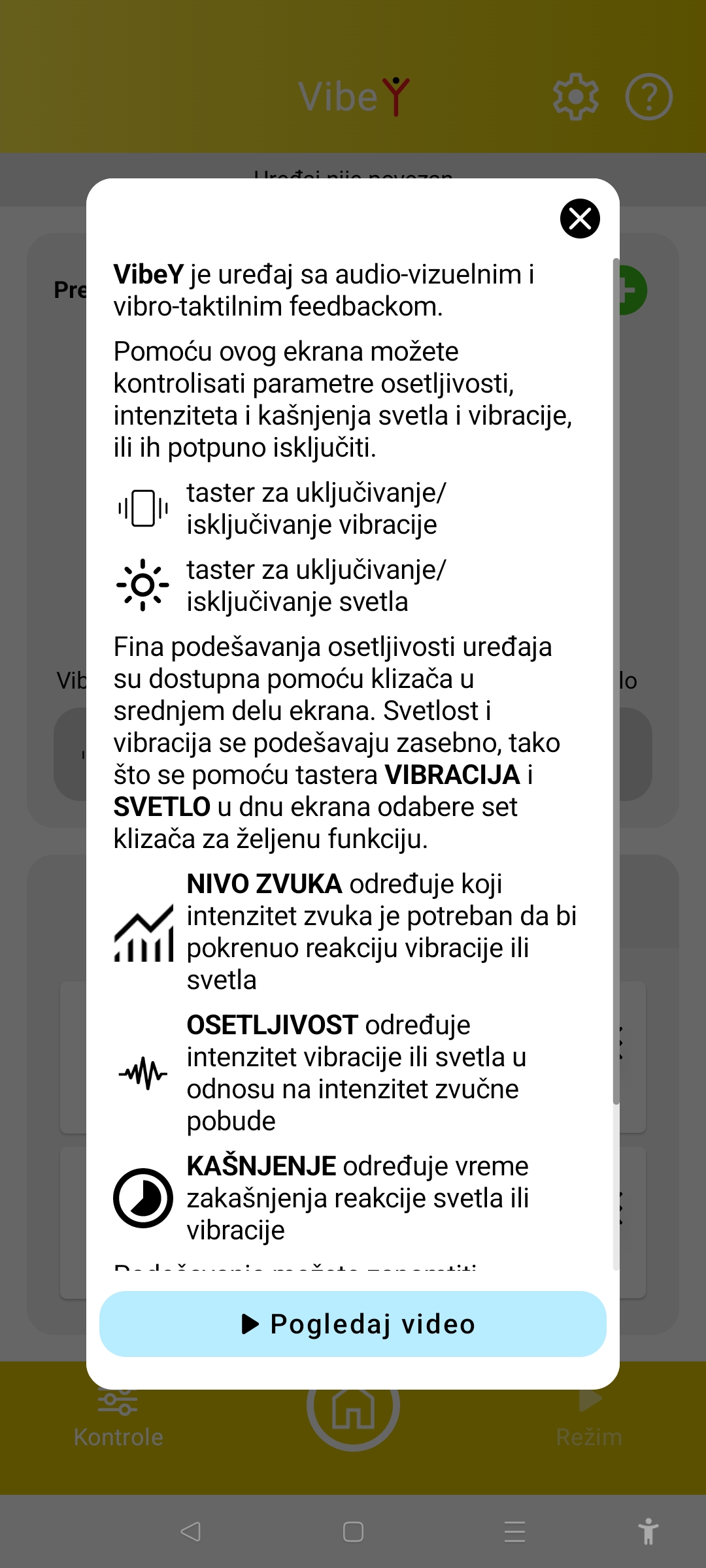
Screen view after pressing the question mark symbol.
By pressing the question mark symbol a screen will appear with text that will help you recall the basic functions of the application for the VibeY device (image below). You can scroll the text in order to read it to the end.
At the bottom of the screen there is a "Watch video" button. By pressing this button you will access a detailed video tutorial that will show you the complete instructions for using your VibeY device.
By pressing the "X" button you return to the home screen of the VibeY device.
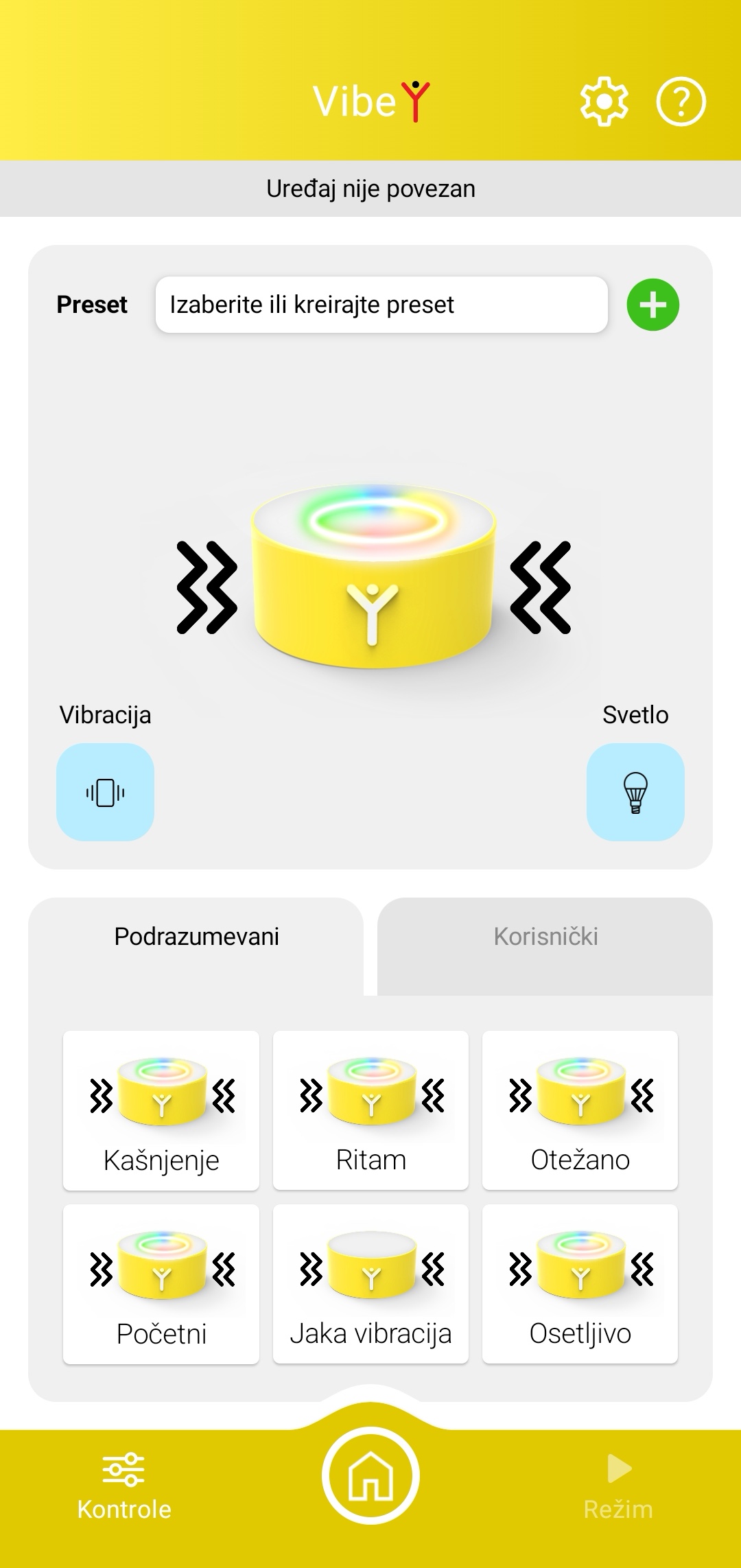
Screen view after pressing the "Select or create a preset" field
In the upper half of the home screen there is a field "Select or create a preset". By pressing this field, a screen will be shown to you in whose lower part there are tabs with the names "Default" and "User" (image right). Under the default presets are the factory-set light and vibration reactions of your device, which are described by the names below the image of each of them. In the user presets are those settings that you created yourself and gave names to. The way of creating and storing settings is described in the chapter SpreadY, Microphone mode.
Below the "Select and create a preset" field there is an image with a visual representation of the turned-on or turned-off vibration or light, as well as buttons for turning them on and off.
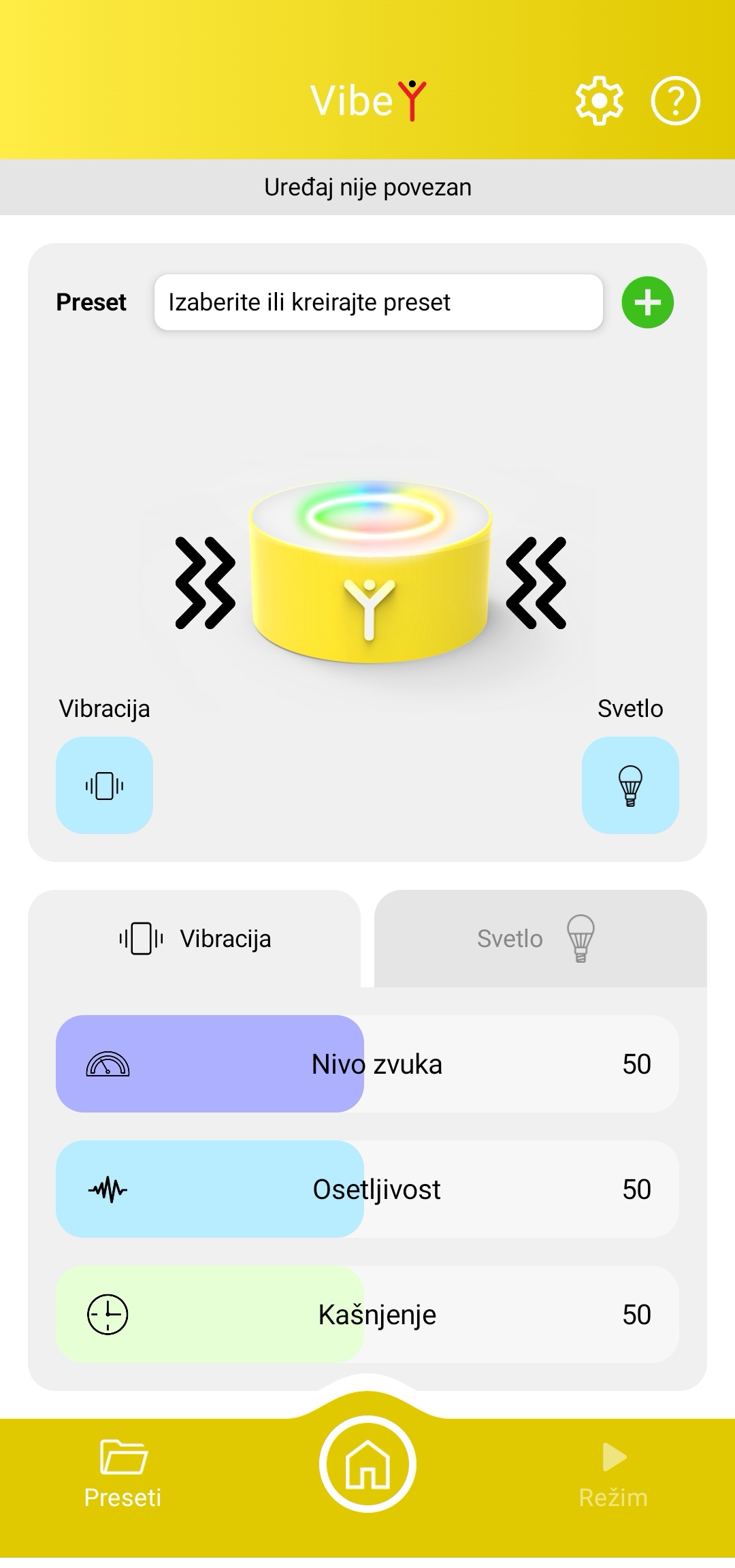
Screen view after pressing the "Controls" field
By pressing the "Controls" button located in the lower left corner of the screen, you return to the home screen, in whose lower part sliders will be shown with controls for adjusting the sound level, sensitivity and reaction delay of your "VibeY" device. You can see the view of this screen in the image on the right.
The buttons Vibration and Light, which are located in the central part of the screen, turn the device's reaction with light or vibration on or off. Their intensity and reaction speed can be adjusted separately using the sliders in the lower field. The tabs Vibration and Light, which are located in the lower half of the screen, determine which type of reaction we are affecting, by selecting the set of active sliders.
Sound level is the threshold of the device's sensitivity to sound by which you can isolate any ambient noise. With it you set the sound level above which the device begins to react with vibration or light. If you choose higher values, a higher sound level will be needed for a reaction. Lower values will give a reaction even to the quietest sounds in the space.
Sensitivity determines the intensity of the device's reaction to a change in sound level. If you change it toward lower values, the vibration or light reaction to the sound change will be milder. The higher the values, the higher the sound level needed for the device to vibrate or glow with greater intensity.
Delay is the time of postponement of the light or vibration reaction to the sound stimulus.
By pressing the "Presets" button in the lower left corner of the screen, you return to the screen that is described on the previous page and that is identical to clicking on the "Select or create a preset" section.
You can always return to the home screen of the "VoiceToys" application by pressing the button with the house image, located in the middle of the lower yellow field of the application screen.